Exporting a Minecraft modpack means packaging your mods, configs, and files so you can share or back them up easily. This guide explains the process step by step in a simple way.
How to Export a Minecraft Modpack
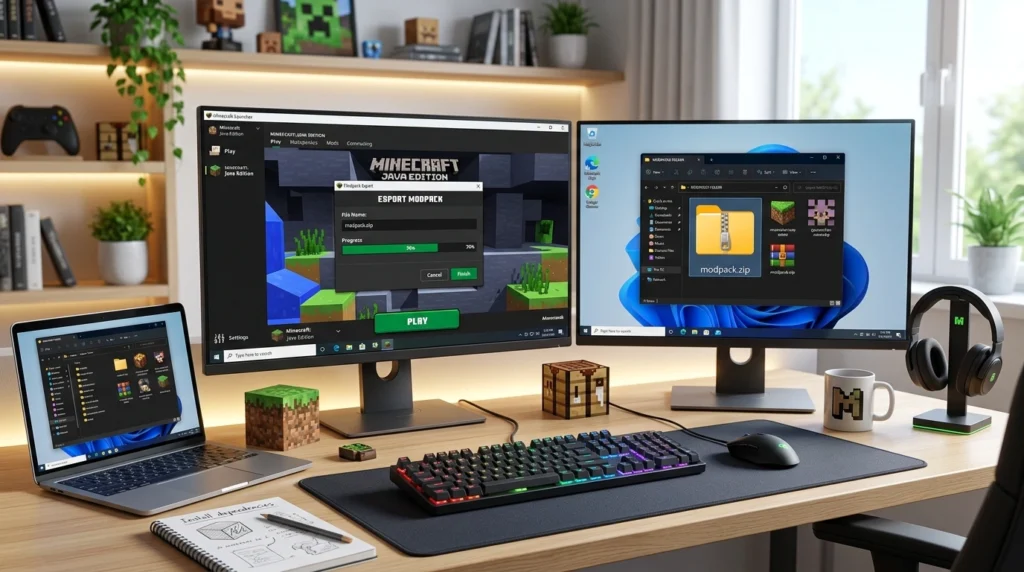
If you have built a custom Minecraft modpack, exporting it is one of the most important steps. It lets you save your setup, share it with friends, or upload it for others to use. A proper export keeps your mods, configurations, and settings organized so the pack works correctly on another device.
Many players create modpacks with tools like CurseForge, Prism Launcher, MultiMC, or ATLauncher. The export process can look a little different depending on the launcher, but the goal is always the same: package the modpack into a clean file or folder that others can install.
What Is a Minecraft Modpack Export?
A Minecraft modpack export is the process of bundling all important modpack files into one shareable package. This usually includes:
- Mods
- Config files
- Shader or resource pack links
- Default settings
- Overrides or custom folders
- A manifest or profile file
Some launchers create a .zip file, while others generate a folder structure or export manifest. The exact format depends on the platform you use.
Why Export a Minecraft Modpack?
Exporting a modpack is useful for many reasons:
1. Easy Sharing
You can send your modpack to friends, community members, or subscribers without giving them each file manually.
2. Backup Safety
If your launcher crashes or your PC is reset, an exported modpack helps you restore everything quickly.
3. Team Collaboration
Creators, server owners, and content makers often share modpacks with teammates to keep the setup identical.
4. Better Organization
An exported modpack keeps everything in one place, which makes updates and edits easier.
How to Export a Minecraft Modpack in CurseForge
CurseForge is one of the most popular modpack launchers. Exporting from it is simple.
Step 1: Open Your Modpack
Launch CurseForge and select the modpack you want to export.
Step 2: Open the Pack Options
Look for the menu or settings icon near the modpack name.
Step 3: Choose Export
Select the export option from the menu. CurseForge usually creates a file that contains the modpack setup.
Step 4: Save the File
Choose a location on your computer and save the exported file.
Step 5: Test the Export
Before sharing it, import the file into another launcher or test install to make sure it works correctly.
Important Note
Some files may not be included if they are not allowed to be redistributed. CurseForge may export a pack using links or a manifest instead of bundling every mod file directly.
How to Export a Minecraft Modpack in Prism Launcher
Prism Launcher is another excellent option for modpack creators.
Step 1: Select Your Instance
Open Prism Launcher and click the modpack instance you want to export.
Step 2: Open Instance Settings
Go to the instance options or right-click the pack.
Step 3: Find the Export Option
Choose the export function from the menu.
Step 4: Select What to Include
You may be able to include configs, overrides, and other custom files.
Step 5: Export the Pack
Save the exported package to your desired folder.
Prism Launcher is especially useful because it gives you more control over what gets packed and shared.
What Files Should Be Included?
A well-made modpack export should usually include:
modsfolderconfigfolderscriptsfolder if usedresourcepacksor custom assets- launcher or instance settings
- pack description or manifest
If your modpack uses any custom tweaks, make sure those are included too. Missing config files are one of the biggest reasons modpacks break after export.
Best Practices Before Exporting
Before exporting your modpack, follow these tips:
Check for Missing Mods
Make sure every mod in the pack is installed and working.
Remove Unused Files
Delete old test files, duplicate folders, or temporary content.
Test the Pack First
Run Minecraft once and confirm the modpack opens without errors.
Keep Versions Consistent
Use the same Minecraft version, mod loader version, and mod versions in the export.
Write a Clear Description
If you plan to share the pack publicly, include a short explanation of what the pack does.
How to Share the Exported Modpack
Once the modpack is exported, you can share it in several ways:
- Upload it to Google Drive or Dropbox
- Share it through Discord
- Post it on your website
- Upload it to a modpack platform
- Send it directly to friends
If you are sharing publicly, make sure you follow the mod authors’ distribution rules. Some mods cannot be redistributed inside a pack unless the platform supports it.
Common Mistakes to Avoid
Here are the most common mistakes when exporting a Minecraft modpack:
1. Forgetting Config Files
This can make the pack behave differently on another system.
2. Missing Dependencies
Some mods need extra mods to work properly.
3. Using the Wrong Minecraft Version
A version mismatch can cause crashes or loading errors.
4. Exporting Without Testing
A pack should always be tested before sharing.
5. Ignoring Permission Rules
Not all mod files are allowed to be bundled freely.
How to Export a Minecraft Modpack for a Server
If the modpack is for a Minecraft server, the export should be even more careful.
Make sure the exported pack includes:
- Server-compatible mods only
- Correct config files
- World settings if needed
- Performance mods if required
- A clear install guide for players
For server modpacks, it is also smart to create a separate client and server version if some mods are not needed on both sides.
SEO-Friendly Tips for Modpack Creators
If you are publishing your modpack on a website, use these content ideas to improve search visibility:
- Add the Minecraft version in the title
- Mention the mod loader name
- Include the main features in the intro
- Add screenshots
- Write a short installation guide
- Include an FAQ section
- Use keywords naturally, not repeatedly
Conclusion
Learning how to export a Minecraft modpack is simple once you understand the launcher you are using. Whether you use CurseForge, Prism Launcher, or another tool, the process is mainly about packaging your mods, configs, and settings in a clean and shareable format.
A good export saves time, reduces errors, and makes your modpack easier to share with others. Before sending it out, always test the pack and check that all important files are included. That way, players can install it smoothly and enjoy the same Minecraft experience you created.
FAQ: How to Export a Minecraft Modpack
1. What does exporting a Minecraft modpack mean?
It means packaging your modpack files so they can be shared, backed up, or imported on another launcher.
2. Can I export a modpack from CurseForge?
Yes. CurseForge includes an export option for modpacks, usually through the pack settings menu.
3. Does exporting include all mods automatically?
Not always. Some launchers use manifests or links instead of bundling every mod file directly.
4. Why is my exported modpack not working?
The most common reasons are missing configs, wrong versions, or missing dependencies.
5. Can I export a modpack for friends to use?
Yes. That is one of the main reasons people export modpacks.
6. Is it safe to upload a modpack online?
Yes, as long as you follow the mod authors’ permissions and the platform’s distribution rules.
7. What is the best launcher for exporting modpacks?
CurseForge and Prism Launcher are both popular choices because they make export and sharing easy.
8. Should I test the pack after exporting?
Yes. Testing helps catch errors before you share the pack with others.